
C-11-350 Orders Management: Update Provider on Signed 485/POC
This process is not to be used for Provider changes on physician orders which are not Plans of Care/485's.
Refer to C-11-350 Update Provider on Signed Physician Order (Non-485) for changes needed to physician orders which are not Plans of Care/485’s.
👤ROLE
Medical Records Specialist
🎯 PURPOSE
If when following C-11-310 Orders Management: 485/POC Provider Follow-Up and Escalation it is determined that the 485/Plan of Care (POC) signed by a provider other than the addressed provider can be accepted, this process must be followed. completing this process, the Medical Records Specialist will update the provider on the signed order, change the listed PCP in HCHB, and notify the branch.
🔄 PROCESS
The order in which you complete the steps of this process is very important. Ensure that the steps below are completed in the specific order identified. There can be negative impacts if steps are not completed in the specific order laid out in this process.
-
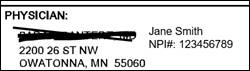
On page one of the order in Mosai, use the text box function to add the typed full name and NPI of the signing provider and strike out the name of the previous provider.
- In HCHB, change the fax settings for the provider who signed the order to F-Other under the specific provider office address. This will stop the order from rebounding to the new provider when the provider is later changed on the 485 in HCHB.
-
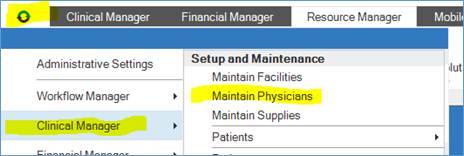
Navigate to Maintain Physicians in HCHB.
- Search for and locate the physician.
-
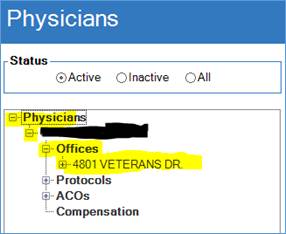
On the left side of the window, navigate to the specific office address and pull up the office-specific provider data.
-
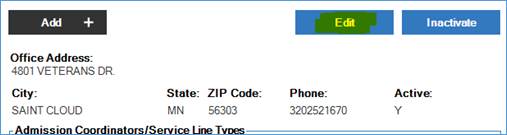
Select Edit.
-
Change the Notify New Order Via: field to fax type F-OTHER.

- Click Save & Close.
-
- In HCHB, locate the order and its associated episode within the Order Console.
-
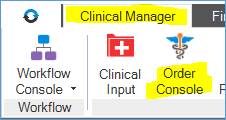
Navigate to the Order Console.
-
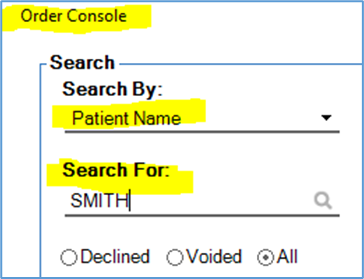
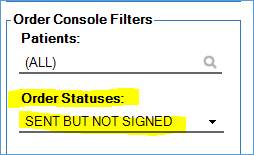
Search for and locate the order. Recommended search filters include searching by client last name and restricting orders statuses to SENT BUT NOT SIGNED.
-
- Within the general client’s chart for this episode of care, change the PCP listed to the new signing provider.
-
Access the correct episode’s Patient Snapshot by selecting the folder icon beside the specific order.

-
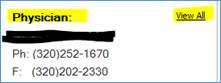
On the right-hand side of the snapshot, select View All beside the listed physician/non-physician practitioner.
-
Change the physician setup so that signing provider of the 485 is listed as the Attending/Primary Physician for Orders, either by adding a new physician or changing the order of the current physicians.

- Click Save & Close.
-
- Complete process C-11-340 Orders Management- PHYSICIAN CORRECTION- ORDER/OASIS Coordination Note.
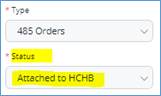
- In Mosai, attach the order to HCHB and then immediately proceed with step 7. To attach the order:
-
Change the case status to Attached to HCHB.
-
In the lower right corner of the window, select Save.

-
- Immediately after completing step 6: in HCHB, edit the order to change the provider on the order itself to the new signing provider.
- Note: if you are unable to edit the order due to the order being already marked as signed, connect with the Compliance Manager for further instructions.
-
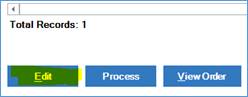
Still within the Order Console, select the order and click Edit on the lower left.
-
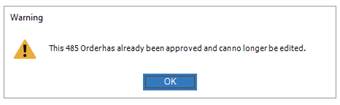
A warning message will appear. Select OK” to continue. The order will open.
-
Scroll down to the lower right and select Edit Physician on Approved 485.

-
Under the Primary Physician field, select the magnifying glass search icon.

-
In the new window that opens, search for the signing provider.

-
Select the correct provider and click Apply Selection.

- Click Save and Close.
-
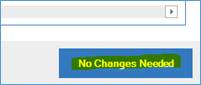
If a pop-up regarding a wound appears, select No Changes Needed.
- Confirm via episode attachments in HCHB Clinical Input that the correct (signed) version of the order attached. (If steps are done in the incorrect order, the incorrect copy will have attached).
-
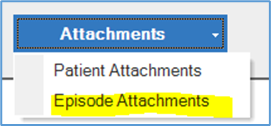
Within HCHB’s Patient Snapshot, access Episode Attachments.
-
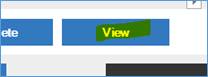
The attachment will now be visible.

-
View the attached document and verify that the version which attached is the signed copy that was intended to be attached.
-
- If the provider initially addressed on the order may be involved in the client's care in the future (such as if they are on a leave of absence), add that addressed provider to Client Referral/Medical Record as a secondary provider. (The initially addressed primary provider will have automatically been replaced in the chart by the provider who is now addressed on the 485.) To do this, complete the following:
-
Open the client's chart from Clinical Input.

-
Select the Physicians tab:

-
Select Add Physician.

-
Enter provider last name or select magnifying glass to search.

- If Provider is not available in list, initiate steps to verify and enter provider into HCHB.
- Select Save and Close to close referral and initiate PECOS Validation.
-
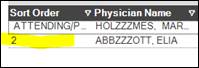
After selecting Save and Close, if no alert generates, the changes will save and the provider will be listed as a secondary provider.
-
- Notify the branch Clinical Supervisor(s) via email using one of the two templates below.
OPTION A - If you found that the originally addressed provider was incorrect, use this template:
(Subject line): Client ______: Change in Episode's Certifying Provider
A different provider than addressed has signed this client’s 485.
- Client Name:
- Episode:
- Provider originally addressed on order:
- Provider who signed 485 and certified the 60-day episode:
The medical records team has confirmed that addressed provider was incorrect. The signing provider is the correct ongoing following provider for this client.
Because of this, for this episode, the provider listed as PCP in HCHB is being changed to the signing provider on the 485. Please note this signing provider must remain listed as the PCP for this episode in the physicians tab in HCHB because they certified this episode by signing the 485 and will be listed on claims when the payer is billed.
Action to take:
- Forward this email to the case manager (and other clinicians as appropriate) so they are made aware of the provider change and can communicate this change to the client at the next visit.
- As appropriate, correct the provider on any unapproved orders in HCHB workflow.
- Investigate why the incorrect provider was selected and determine if any actions need to be taken to resolve any process or communication issues on the branch level.
OPTION B - If the signing provider was covering in the absence of the addressed provider, use the following template:
(Subject line): Client ______: Change in Episode's Certifying Provider
A different provider than addressed has signed this client’s 485.
- Client Name:
- Episode:
- Provider originally addressed on order:
- Provider who signed 485 and certified the 60-day episode:
The medical records team has followed up with this provider and confirmed that: the signing provider has been authorized to care for the original certifying provider’s clients in the addressed provider’s absence.
Because of this, for this episode, the provider listed as PCP in HCHB is being changed to the signing provider on the 485. This signing provider must remain listed as the PCP for this episode in the physicians tab in HCHB because they certified this episode by signing the 485 and will be listed on claims when the payer is billed.
Action to take:
- Forward this email to the case manager (and other clinicians as appropriate) so they are made aware of the provider change and can communicate this change to the client at the next visit.
- As appropriate, correct the provider on any unapproved orders in HCHB workflow.
-
After some processing time, the order will land in Mosai under delivery type Other and will remain in Pending Delivery status until addressed.

- After confirming step 10 is complete, return the signing provider’s fax settings in HCHB to F-FAXNOW. To do this complete these steps:
-
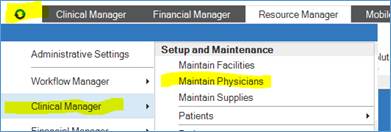
Navigate to Maintain Physicians in HCHB.
- Search for and locate the physician.
-
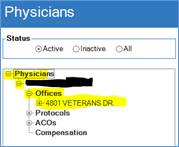
On the left side of the window, navigate to the specific office address and pull up the office-specific provider data.
-
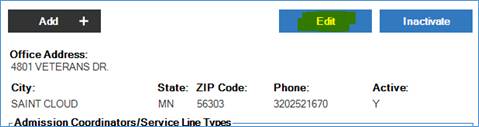
Select Edit.
-
Change the Notify New Order Via: field to fax type F-FAXNOW.

- Click Save & Close.
-
- The only remaining step is to archive the order out of Pending Delivery status in Mosai.
-
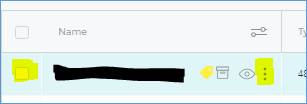
Locate the order and select either the 3-dot icon, or select the order using the checkbox beside it.
-
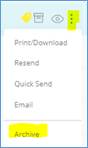
Select Archive (using either the icon or the option in the dropdown).

-
📅 Effective: 07.17.2024 | 🛠️ Revised: 08.12.2026 | ✅ Approved: JFJ