
C-19-105 Manually Export Order from HCHB to Mosai and Resend to Updated Provider
👤 RESPONSIBLE POSITION | ROLE
Medical Records Specialist
🎯 PURPOSE
This process provides the steps needed when the provider addressed on an order in HCHB is changed to a different provider (following C-11-351 Orders Management - Change Addressed Provider on Unsigned Order), but the updated order does not auto-fax to the new provider via Mosai.
It may take up to two hours for the order to auto-fax to the new provider after process C-11-351 is completed; if after that time the order has not updated in Mosai, proceed with this process below to manually export the updated order from HCHB to Mosai and resend the order to the physician/non-physician practitioner (NPP).
NOTE
This process also applies if you are needing to reroute an order to the same provider but different address (for cases when a provider has multiple practice locations assigned in HCHB) and the updated order does not auto-fax out via Mosai.
Similarly, if it is found out that we have the incorrect address listed for a provider, and are needing to edit this information (not adding a new address/location), you will need to follow this process as an edit to the address in HCHB will not prompt HCHB to send the order through Mosai again to be auto-faxed to the new location. In this scenario, you will also have to update the provider’s address information under the “Directories” tab in Mosai as well, before resending the order.
🔄 PROCESS
- After completing C-11-351 and waiting at least a couple hours, verify that the order did not auto-fax out via Mosai. If this is the case, continue with this process.
- Manually export the updated order from HCHB by completing these steps:
-
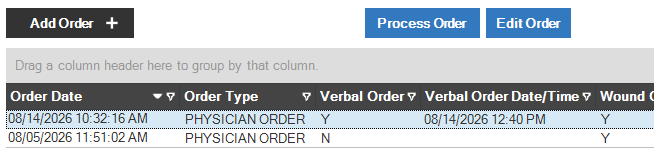
Navigate to the client's orders in HCHB. Select the specific order so that it is highlighted.
-
Select the specific order and then click Print Order.

-
When the order opens, select the Print icon.
-
From the printer options, select Send to Forcura.

-
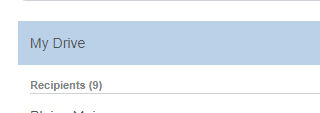
A Send to Forcura window will pop-up. Select My Drive.
-
Click Send. This will upload the order into your personal drive in Mosai.
-
- Now that the order is in your personal Drive in Mosai, attach the updated order to the order's existing case in Mosai.
-
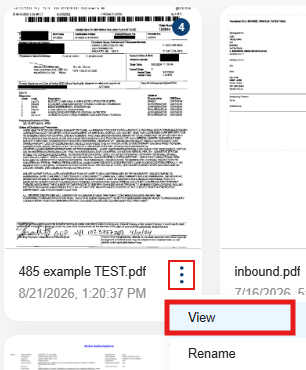
In your Drive, view the updated order which you just exported from HCHB.
- On the right-hand side of the page, locate the Order Number field within the document info bar on the right-hand side.
-
Type in the order number and then select Click To Attach To An Existing Case.
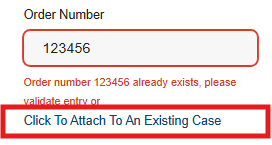
- NOTE: Do not select "Create” in the lower right; this would create a duplicate case.
-
- After clicking Click to Attach To An Existing Case, a new window which will open.
-
Ensure the order number and listed patient match the uploaded order.

-
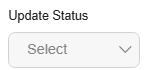
If the existing case has a status of Archive, select a new status of Pending Signature in the Update Status field.
-
Select the order and click Attach to attach the order to its case.

- The page will load to the actual case for the order number identified.
-
- Next, update the Directory within the case to the correct provider:
-
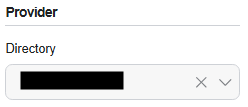
Within the document info on the right-hand side, scroll down to the Provider section.
-
In the Directory field, type the new provider’s name. Once the correct provider (and correct associated address populates, select that provider.
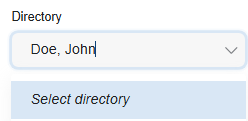
- Ensure that you are selecting the correct provider and address, as sometimes providers will have multiple addresses associated to them.
-
Select Save in bottom right-hand area.

-
- To ensure the changes have saved, close out of the order and then reopen the case to ensure that the Directory field has saved.
- Send the order to the corrected provider by using the Resend feature:
-
Navigate to Activity.
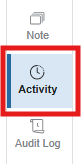
- Locate the most recent Activity entry.
-
Select the Resend icon.
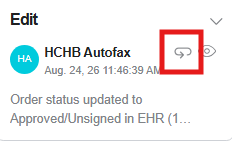
- In the window that opens, ensure the correct selections are made:
-
The updated new provider is in the Recipient field.
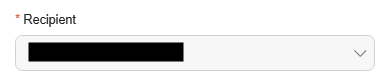
-
Select Fax.

-
Select the correct branch Fax Group.

-
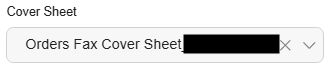
In the Cover Sheet field, select the specific branch Orders Fax Cover Sheet.
-
-
Select Send.

-
- The order will now be sent to the updated provider for signature, completing this process.
📅 Effective: 08.24.2026 | 🛠️ Revised: N/A | ✅ Approved: JFJ