
C-11-351 Orders Management - Change Addressed Provider on Unsigned Order
👤 RESPONSIBLE POSITION | ROLE
Medical Records Specialist
🎯 PURPOSE
When the addressed provider on an approved, unsigned order needs to be changed, the Medical Records Specialist must complete the following steps to ensure the order is rerouted to the appropriate provider for signature.
🔄 PROCESS
- In HCHB, navigate to Clinical Input and search for the client.
- In the list of episode results, locate and select the correct episode date range to which the order is associated.
- The episode dates of the specific order are on the top of the order.
-
On 485's, they are labeled as the Certification Period.

-
On other physician orders, they are labeled as CERT (certification dates).

-
-
The episode dates are listed as columns in the Clinical Input search results.
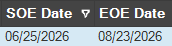
- The episode dates of the specific order are on the top of the order.
- If the order is a 485, before proceeding, ensure the provider is listed as Attending/Primary in client’s chart.
-
This is located under the physician tab in the client referral.

-
If the provider is not listed as primary, but is in the chart as secondary, change them to primary in the chart.

- If the provider is not listed as a physician, add them in the chart and mark them as primary.
-
If you receive any pop-up notifications about the physician not being PECOS-verified:
Review the payer selection to ensure a Medicare or Medicare Advantage payer is not set up as PRIMARY, SECONDARY or TERTIARY.
If there is a Medicare or Medicare Advantage payer set up as PRIMARY, SECONDARY or TERTIARY, reach out to the Compliance Manager for direction.
-
At the bottom of the Clinical Input window, click Medical Records Info and then select Orders from the submenu.
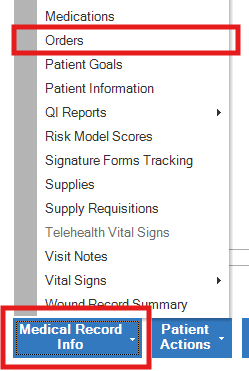
-
Select the order that is needing to be updated so that it is highlighted; then click Edit Order.
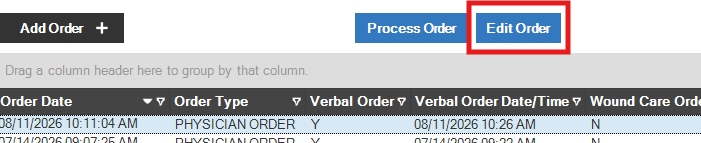
- A confirmation window will open. Select Yes or OK to continue.
-
if the order has been approved and it is a non-485 order, this pop-up will open. Select Yes to continue.

-
if the order has been approved and it is a 485 order, this pop-up will open. Select OK to continue.

-
- Next, update the provider on the order within the Primary Physician field.
-
If the order is 485 order, first scroll down to the bottom of the page and select Edit Physician on Approved 485. (This step is not needed for non-485 orders; if the order is not a 485 proceed with step 7b.)
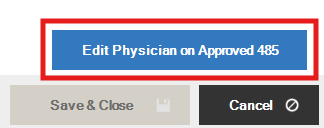
-
Select the magnifying glass icon next to the Primary Physician listed.

-
Search for and select the correct provider. Ensure the correct location address is selected for the specific provider.

-
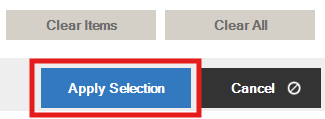
Click Apply Selection.
-
Select Save and Close.

-
- Next, create a PHYSICIAN CORRECTION - ORDER/OASIS Coordination Note.
- Navigate to Mosai and locate the order.
-
Ensure that the order was in fact rerouted to the correct, updated provider. There will be a specific icon next to the provider’s name indicating the provider was updated on the order.

- It may take up to two hours for the order to resend to the correct provider.
- If after that time the order still does not update and resend to the new physician in Mosai, complete process C-19-105 Manually Export Order from HCHB to Mosai and Resend to Updated Provider. Ensure the order updates and reroutes to the correct provider via Mosai.
-
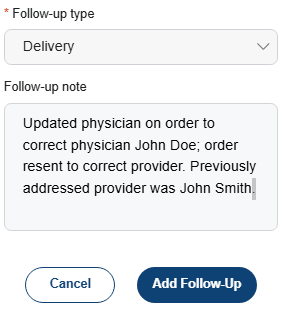
In Mosai, enter a Follow-up note within the order’s case stating what change was made and why to ensure that there is no confusion as to why this order was updated.
📅 Effective: 08.21.2026 | 🛠️ Revised: N/A | ✅ Approved: BL, JFJ