
C-14-213 Review REQUEST TO ADD NEW PHYSICIAN Coordination Note
👤 RESPONSIBLE POSITION
Medical Records Specialist
🎯 PURPOSE
This process gives direction on the steps required to process the HCHB workflow task REQUEST TO ADD NEW PHYSICIAN, which generates under the Review Coordination Notes tab.
When the Medical Records Specialist receives this workflow, they follow the steps below to verify active licensure and NPI registry information specific to the physician/non-physician practitioner (NPP) and enter their information into Home Care Home Base (HCHB).
PECOS verification status and Medicaid enrollment will also be reviewed as part of this process.
This is a time-sensitive task; HCHB workflow should be monitored frequently throughout the day to ensure that these are processed timely.
🔄 PROCESS
When a REQUEST TO ADD NEW PHYSICIAN coordination note is created in HCHB, the note flows to the Medical Records Specialist workflow under the Review Coordination Notes tab.
-
Open the task and click Review Coordination Note to see the contents of the note.
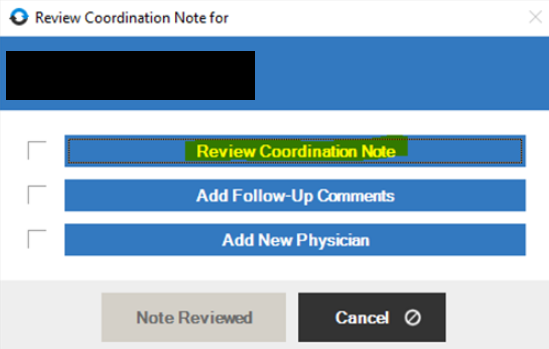
- Confirm that the physician/NPP identified in the coordination note is not already entered in HCHB by searching the list of providers in HCHB.
- Navigate to the Orb in the upper left of the HCHB Main page.
- Select Clinical Manager.
-
Select Maintain Physicians. A new HCHB window will open.
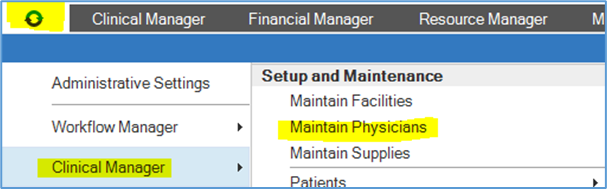
-
Select Show All Physicians.

-
Search for the provider. If the NPI is available, you may search by NPI.

- If the provider is not already in HCHB, continue following the process below.
- If the provider is in the system, but the requesting branch is not included under the provider setup, follow C-19-104 Add Branch to Existing Physician.
- Locate additional physician/NPP information in the NPPES NPI registry, searching for the specific provider using information provided within the CC note.
- Link to the registry: https://npiregistry.cms.hhs.gov/search
- Do not use any other website to source NPI Registry information.
-
A direct link to the NPPES NPI Registry is also accessible from the HCHB Apps homescreen.
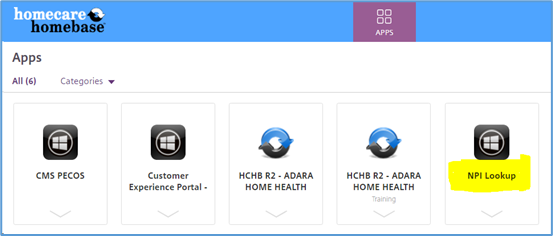
- Link to the registry: https://npiregistry.cms.hhs.gov/search
- Confirm valid active physician/NPP licensure via the Minnesota Board of Medical Practice or Minnesota Board of Nursing.
- Link to MN Board of Medical Practice: https://bmp.hlb.state.mn.us/#/onlineEntitySearch
- Link to MN Board of Nursing (for NPPs): https://mbn.hlb.state.mn.us/#/services/onlineEntitySearch
- If the requested provider is a Podiatrist, follow process C-11-302 Verify Podiatrist (DPM) Licensure.
- There are specific circumstances when a provider not licensed in MN, but licensed in another state, may sign orders for home health provided in Minnesota. If the provider is not licensed in Minnesota but appears they may be licensed in another state, proceed with the OUT OF STATE PROVIDER PROCESS.
Do not use any sites other than these official Minnesota board sites listed above to verify Minnesota licensure for physicians or NPP’s.

License information will be listed under Credentials.
⚠️A residency permit is NOT licensure and does qualify the individual as a licensed provider.

- Verify that the provider is enrolled with Medicaid.
- Log into the MN-ITS website: https://mn-its.dhs.state.mn.us/gatewayweb/login
-
Select Provider Lists from the menu on the left-hand side.
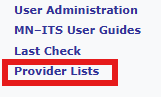
Select the Ordering/Prescribing Providers file.
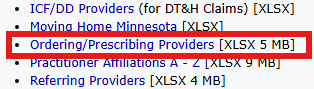
The list of providers will download to your browser. Select the document from your downloads.
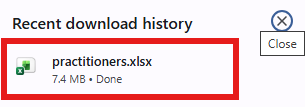
- NOTE: Always access this document from the MN-ITS website to ensure you are referencing current data.
- The provider list will open in a spreadsheet format. Confirm the provider is listed on spreadsheet, which indicates that the provider is enrolled with Medicaid.
- Click here for instructions on using the Find feature within the spreadsheet to easily search for the physician.
- If the provider is not listed in the spreadsheet, the provider is not Medicaid-enrolled.
- After completing all former steps, proceed with adding the physician to HCHB.
- Enter the Maintain Physicians screen in HCHB, as described in step 2.
-
Select Add.

- Complete fields below primarily by referencing the provider’s licensure per the MN Board of Medical Practice. Remaining fields can be completed using information from the NPPES NPI Registry.
- Last Name
- Middle Initial (if available)
- First Name
- Specialty
- Degree
-
Taxonomy Code
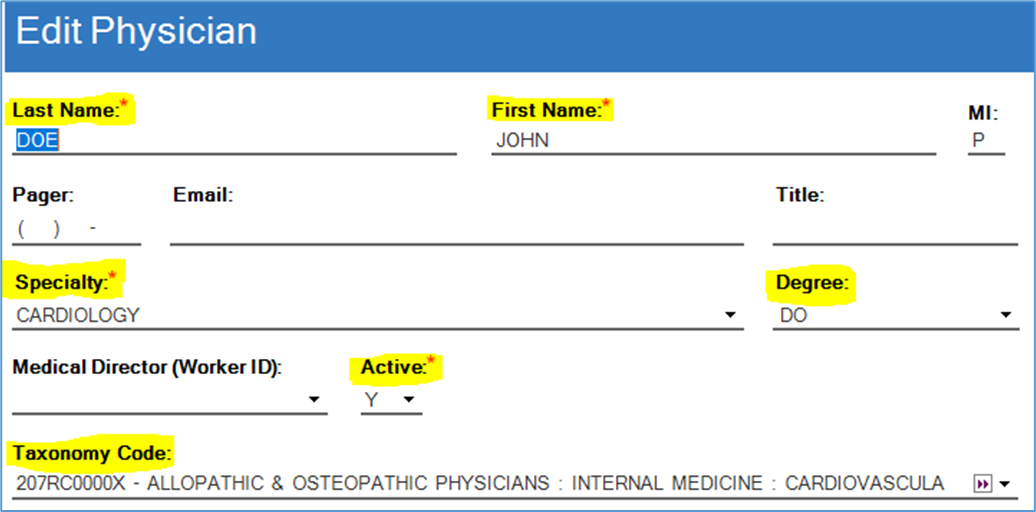
- NPI
- Notify New Order Via: F-FAXNOW
- Notify Vital Sign Alerts Via: Fax
- Physician Group: Select the physician group which applies, and select Miscellaneous if no specific options apply.
- License Number
- Verification Date
- Expiration Date
- Select Save.
-
A pop-up will open, asking if you would like to enter an office location for this provider. Select Yes.
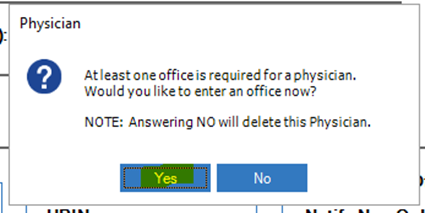
- Referencing the information found in the NPI NPPES registry and in the coordination note REQUEST TO ADD NEW PHYSICIAN enter the provider’s office information including address, phone, and fax number.
- When needed, call and confirm that the physician's contact information is accurate.
- In the office settings options, select the following:
- Active: Y
- Notify Vital Sign Alerts Via: Fax
- Physician Group: Select the physician group which applies, and select Miscellaneous if no specific options apply.
- Notify New Order Via: F-FAXNOW
- Allow Web Access for Visit Notes: Y
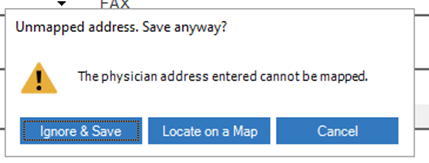
- A pop-up about an unmapped address may appear. To select the location, choose Locate on a Map.
-
If unable to resolve, select Ignore & Save, as provider address mapping within HCHB is not essential.
-
-
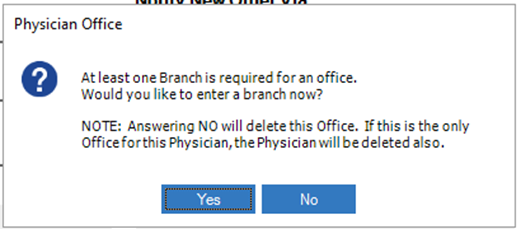
A pop-up will appear stating that a branch location must be added. Select Yes.
-
Select the branch requesting the new provider entry.
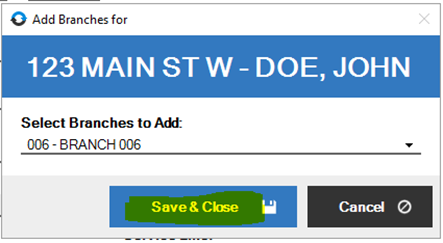
- Select Save & Close.
-
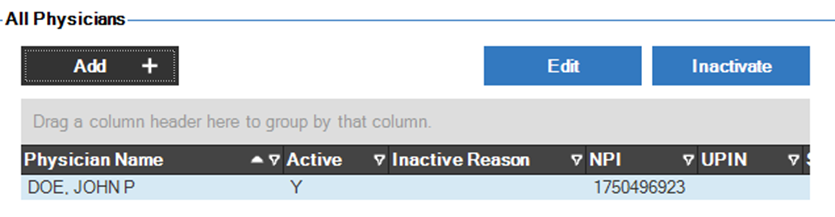
The provider has been added and now appears in the list on the main screen of Maintain Physicians.
- Confirm there is no error in verification for this provider in HCHB’s PECOS Verification System.
-
From within HCHB’s Maintain Physicians screen, select PECOS Verification from the lower left corner of the window.

-
Search for, by last name, the provider that was just entered and identify the status of their PECOS Verification.

- If the provider enrollment status is either VERIFIED or NOT VERIFIED, no further action is needed within this step.
-
If the provider enrollment status is NOT VERIFIED – LEGAL NAME MISMATCH, select Set Physician Name to PECOS Legal Name, in the lower left. The status should immediately update to either VERIFIED or NOT VERIFIED.

- If selecting Set Physician Name to PECOS Legal Name does not resolve the provider enrollment status, further action is required to identify and correct the error or discrepancy. Reach out to the Compliance Manager for assistance and ensure this error is resolved so that the provider's enrollment status in HCHB is either NOT VERIFIED or VERIFIED.
-
- This completes entry of the new provider in HCHB. As the final step, notify the request that the provider entry is complete by sending then an email.
- In the email, inform the requestor if any of the following apply:
- The provider's PECOS status is anything other than VERIFIED. If this is the case, home health services could not be billed to Medicare if associated to this provider.
- The provider is not Medicaid-enrolled. If this is the case, home health services could not be billed to Medicaid if associated to this provider.
- The provider's name is noticeably different from the name provided in a branch’s REQUEST TO ADD NEW PHYSICIAN CC Note (such as a different last name or different spelling).
- In the email, inform the requestor if any of the following apply:
EMAIL TEMPLATE
Your request to add a new physician to HCHB has been completed. This provider is now available for you to add to the client in HCHB.
Client Name:
Provider Name:
If you are a Pointcare User, please complete a selective refresh.
Include the following statements only as they apply:
- Please note this provider is NOT in PECOS verified status and cannot be used for clients whose services are being billed to a Medicare payer.
- Please note this provider is NOT Medicaid-enrolled and cannot be used for clients whose services are being billed to a Medicaid payer.
- Please note the provider's name correction found: (describe)
📅 Effective: 02.14.2024 | 🛠️ Revised: 07.31.2026 | ✅ Approved: JFJ